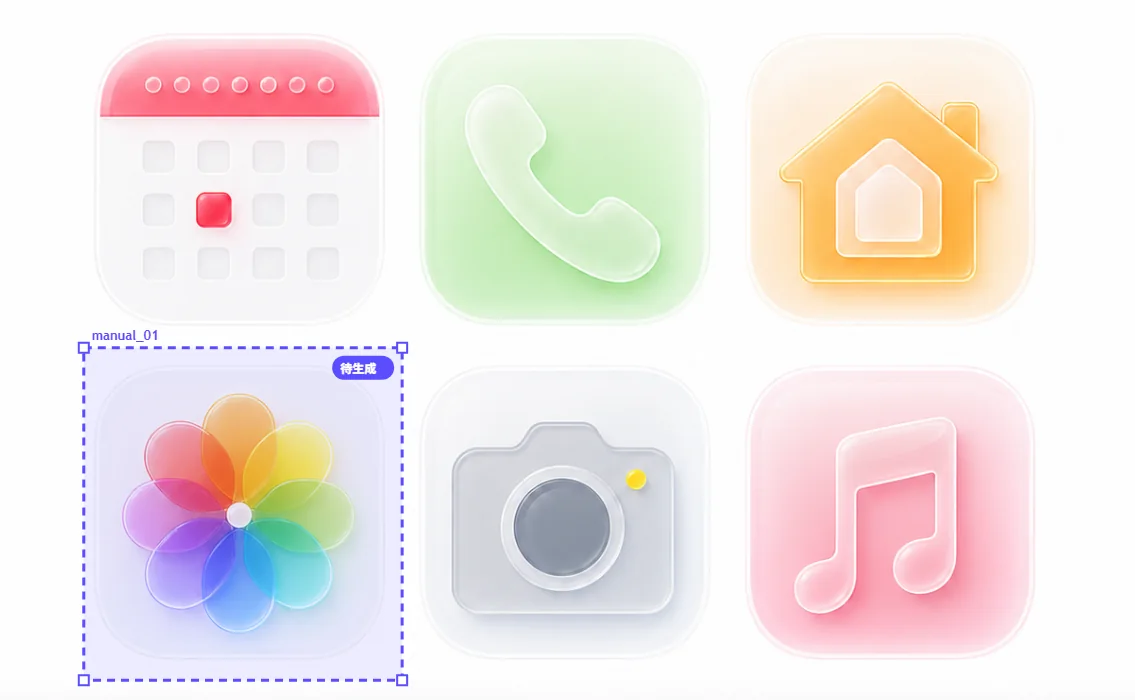

Automatic icon splitting
Upload a PNG, JPG or WebP sheet. Detect individual icons and preview them on a transparent background.
→







Split your icon sheet into individual files. Detect icons automatically, refine their edges, and export the assets you need.
Upload a PNG, JPG or WebP sheet. Detect individual icons and preview them on a transparent background.
Draw regions yourself for crowded sheets, complex edges, single-icon cleanup, or missed detections.
Separate icons from sheets, AI asset boards, and design screenshots without a fixed grid.
Remove backgrounds, inspect transparent edges, and choose standard or vector smoothing.
Add padding, choose a base size, and export raster assets at 1x, 2x, 3x or scalable SVG.
IconSplit for Codex
Select an icon sheet from your Codex workspace or attach one in ChatGPT. Review detections, repair edges, rename the set, and export PNG, WebP, SVG, or ZIP without changing tools.
Download the plugin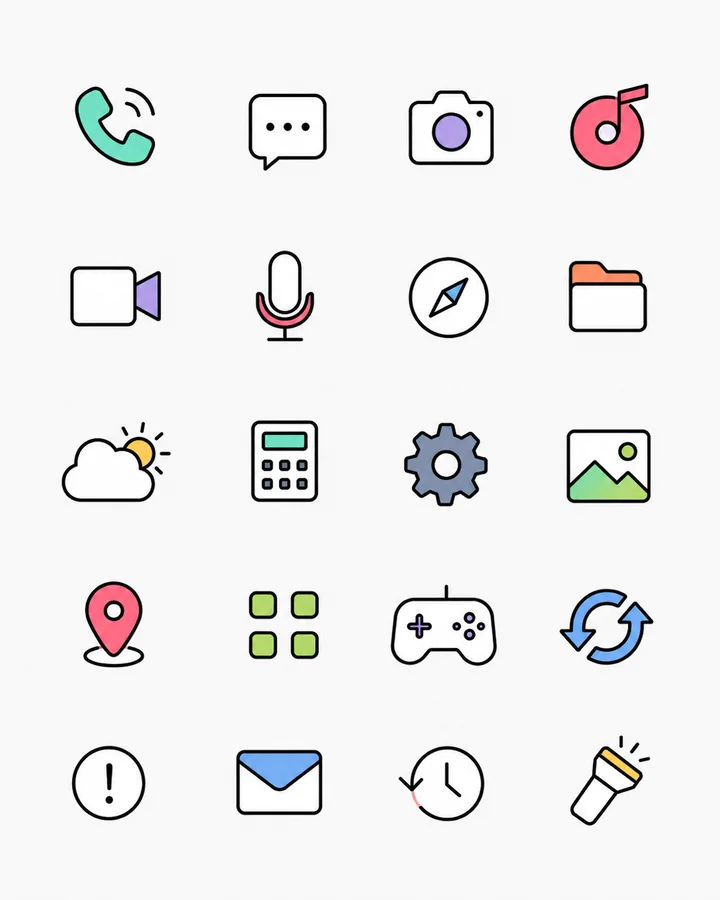 workspace/icon-sheet.png
 icon-set.zip
The example below uses the supplied source image and IconSplit's extraction pipeline—not a manually recreated mockup.


Need just one icon? Detect the sheet, keep the result you want, and export it separately. Review the background and edges before downloading.
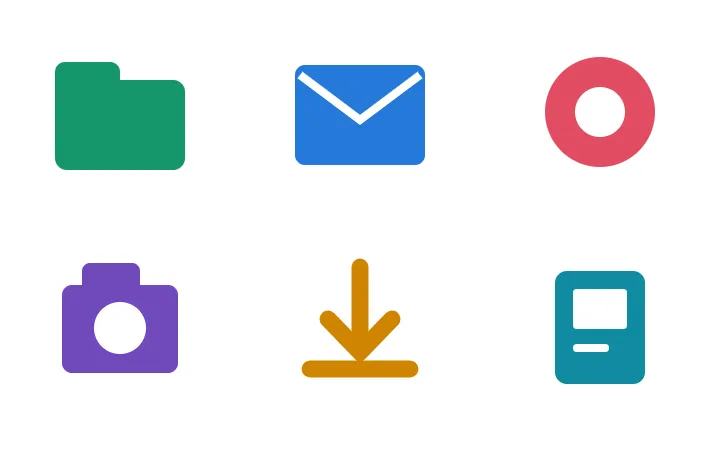


Actual exports from our September 7, 2026 test. Edge shrink is optional and can remove thin details. The checkerboard is a preview background, not part of the PNG files.
Extract logos, icons and illustrations from ChatGPT and Gemini website mockups for websites, prototypes and developer handoff.
Drag the handle to compare enlarged PNG pixels with the same extracted icon converted into real SVG paths by IconSplit.


Actual PNG and SVG pairs exported from IconSplit. Drag or use the arrow keys to compare.
IconSplit automatically detects multiple icons before it converts or exports anything. Review and repair each result independently, preserve the raster appearance with Vector smoothing, or rebuild the icon as scalable SVG paths. PNG and WebP exports can include transparent padding and 1x, 2x, or 3x size variants.
PNG and WebP reuse the same repaired raster result. SVG reconstructs the icon as vector shapes, so it serves a different workflow.
Best for UI, apps, design handoff, and any workflow that needs predictable transparent pixels.
Uses the same Repair result as PNG while offering a compact modern delivery format.
Rebuilds geometry and color regions into filled shapes, fitted curves, and cut-out paths for holes.
Edge cleanup and SVG conversion are separate tools. Choose based on whether exact raster color or editable vector geometry matters more.
Keeps the repaired raster exactly as reviewed, without adding another smoothing or vector conversion step.
Best for: preserving the source appearanceApplies conventional anti-aliasing to lightly jagged raster edges.
Best for: minor edge cleanupRebuilds the transparent boundary with smooth vector geometry while preserving original raster colors, gradients, and textures.
Best for: cleaner PNG and WebPReconstructs both geometry and color regions as scalable paths. Complex raster effects may be approximated.
Best for: scalable, editable outputA fixed slicer only divides a grid. A generic vectorizer converts the whole upload. IconSplit separates, repairs, and exports each icon independently.
| Capability | Grid slicer | Generic PNG-to-SVG | IconSplit |
|---|---|---|---|
| Detect multiple icons automatically | Limited | No | Yes |
| Works without equal rows and columns | No | Not applicable | Yes |
| Repair every icon independently | No | No | Yes |
| Preserve raster color with Vector smoothing | No | No | Yes |
| Export PNG, WebP, and separate SVG files | Limited | Usually one image | Yes |
| Generate 1x, 2x, and 3x raster assets | Limited | No | Yes |
Yes. Upload an icon sheet, AI asset board, or design screenshot, then review each automatically detected result.
Both use the same repaired raster result. PNG offers broad compatibility, while WebP is designed for compact web delivery.
Vector smoothing preserves raster colors and replaces the boundary. SVG rebuilds geometry and color regions as vector paths.
Yes. Choose a base output size, then export the required PNG or WebP scale variants.
Not always. Complex gradients, shadows, and textures may be approximated as vector color regions.
Yes. Export selected results or package the complete icon set into one ZIP.
Yes. Upload the image, select only the icon you need, and export that result. Use manual selection if automatic detection includes neighboring artwork.

Download original Split icons in SVG and PNG for free. No login required.