
Why Does My Icon Crop Include a Neighboring Icon?
A stray fragment and two merged icons need different fixes. Diagnose the crop before changing detection settings.
Start by checking whether you have the wrong crop or the wrong selection. A small fragment at the edge of one PNG is not the same problem as two complete icons being detected together. Changing a distance setting without making that distinction can remove details you wanted to keep.
Three things that can look like the same bug
| What you see | What to inspect | First action |
|---|---|---|
| A sliver of a neighboring icon along one edge | Does the rectangular crop extend into the neighbor, even though the intended icon is separate? | Compare the crop bounds with the source at full size. |
| Two whole icons in one result | Does a single detection box surround both? Are their outlines, shadows or decorative marks connected? | Check for a background gap before splitting the selection. |
| Small dots or detached marks around an icon | Are these part of the artwork, background remnants, or another icon? | Compare the original image before removing them. |
A crop is a rectangle; an icon usually is not. A rectangle that encloses one irregular shape can also intersect a nearby shape. If an extraction keeps those neighboring foreground pixels inside the crop, the result can contain a fragment even without a merged detection. A thumbnail alone does not establish that this is the cause.
For a merged result, the selection itself needs attention. Background cleanup and export padding are different operations: adding transparent padding cannot remove unwanted artwork already inside the image.
A controlled test: two intended shapes, one detection
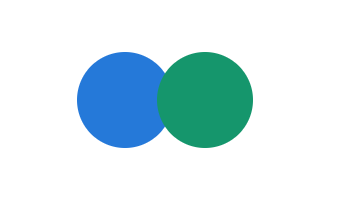
We made a 340 × 200px white image with two overlapping colored circles. In the recorded September 7, 2026 Precision-mode test, IconSplit returned one region for two intended shapes. This demonstrates a merged selection, not an isolated fragment caused by a loose crop.
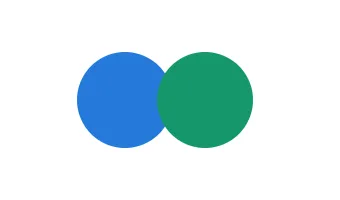
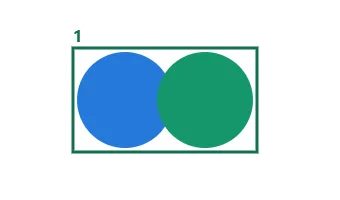
Download the test input and inspect the recorded measurements. These are fixed test assets, not a claim that every dense sheet fails in the same way. The input is original geometric artwork created for this test.
Choose the fix that matches the source
- For a loose rectangle, tighten the crop. Keep the intended icon's entire outline and exclude the neighbor where the source allows it. Manual selection lets you draw the region deliberately. A tighter rectangle only helps when the unwanted content can actually be excluded without cutting the icon.
- For separate shapes grouped together, make separate selections. Inspect detached details first: a small dot might belong to the icon. If one rectangular selection cannot isolate the artwork, edit the source or create a better-separated version.
- For touching or overlapping artwork, fix the source when possible. Move the icons apart in the original design document, or regenerate the board with clear space around each icon. There is no single gap value that guarantees correct detection across different image sizes and styles.
- For leftover background, review Repair on light and dark backgrounds. Background-colored residue is different from another icon. Edge cleanup is not a general-purpose way to erase neighboring artwork.
Cropping cannot recover hidden artwork. In our circle test, part of the blue circle is obscured by green pixels. Drawing two boxes cannot reconstruct that missing arc. You need the original separate layers, a redraw or a new source for two complete shapes.
A short check before exporting everything
Inspect the suspicious result beside the source. Check all four crop edges, verify detached marks, and compare the number of selections with the intended icons. Review at the size you will actually use, not only as a small thumbnail. Keep the untouched source so you can revise the selection without losing information.
For the complete detection-to-Repair workflow, see the six-icon extraction example. Use its clean source as a control: if a dense sheet behaves differently, investigate its spacing and artwork instead of assuming all exports have the same problem.
Check your own sheet
Sign in to process 3 images per day free and download one PNG per sheet up to 512px. Complete sets and ZIP exports require Pro or Lifetime.