How to extract assets from ChatGPT-generated website mockups
Extract the logo, hero illustration and feature icons from a ChatGPT or GPT Image website design. Follow the selection, cleanup and export workflow to bring the artwork into your project.
IconSplit · Updated October 17, 2026
1. Download the original website image
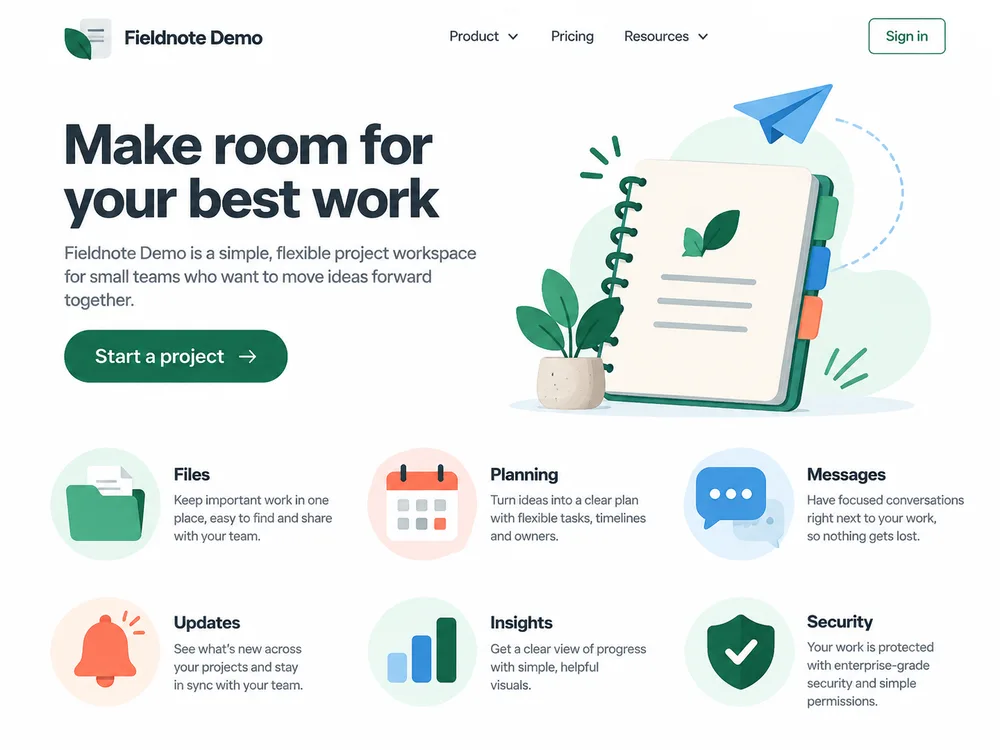
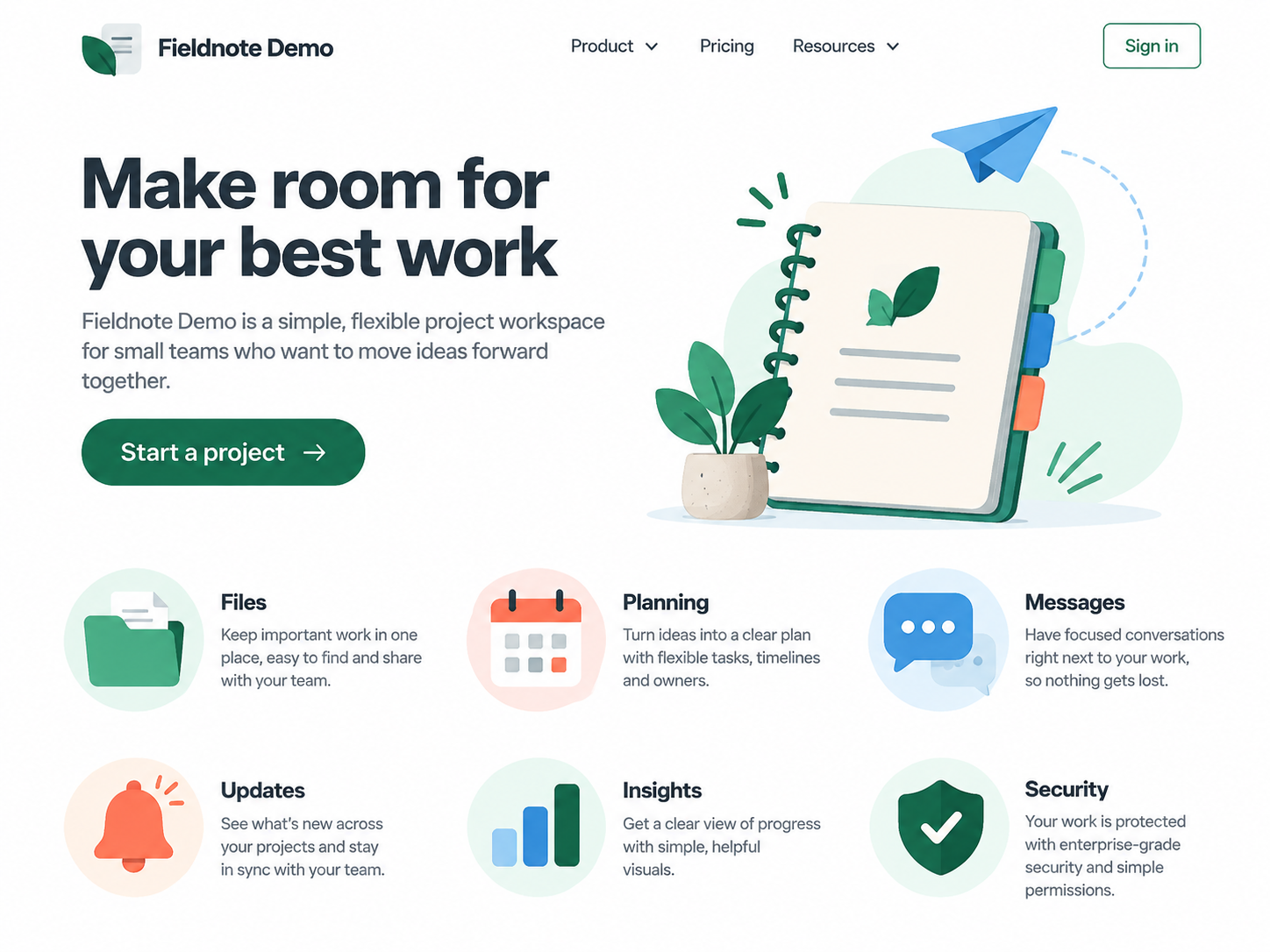
Generate and download the website mockup in ChatGPT. A clear background and space between artwork and text make extraction easier. Use the source image and generation prompt below to follow this tutorial.
View the generation prompt
Create one polished desktop SaaS landing-page mockup as a single raster image, not HTML or code. Use a 4:3 landscape canvas, approximately 1600 by 1200 pixels. The fictional product is "Fieldnote Demo", a small-team project workspace. Include a complete top navigation with a new original abstract leaf-and-note logo, product name, Product, Pricing, Resources, and a Sign in button. Use the headline "Make room for your best work" with a short supporting sentence and a "Start a project" button. Put a standalone editorial illustration to the right of the hero: a notebook, paper plane, and small plant, with generous surrounding space. Below the hero, show six features in a two-row, three-column grid with their own original colored pictograms and brief text labels: Files (folder), Planning (calendar), Messages (chat bubble), Updates (bell), Insights (bar chart), and Security (shield). This must look like a cohesive real website design, not an icon sheet. Use a white content background with restrained emerald, blue, coral and charcoal accents; readable text; generous spacing; clear non-overlapping artwork. Keep the logo, six pictograms and hero illustration visibly distinct from surrounding text. Subtle shading is welcome, but avoid shared shadows between separate assets. No browser window frame, existing brand marks, stock photos, watermarks, or external logos. Generate the image itself.
2. Use the original image to preserve detail
Use the downloaded 1448 × 1086px PNG rather than a screenshot or compressed chat image. Decide whether you need a complete badge, an individual shape or the full illustration. This example retains the pale circular backgrounds and the details of the hero artwork.
3. Detect artwork and refine your selections
Preview automatic detection after uploading. The original yields 16 regions, including text or interface controls. Manual selection is then used to keep 8 assets: the logo, hero illustration and six feature icons.
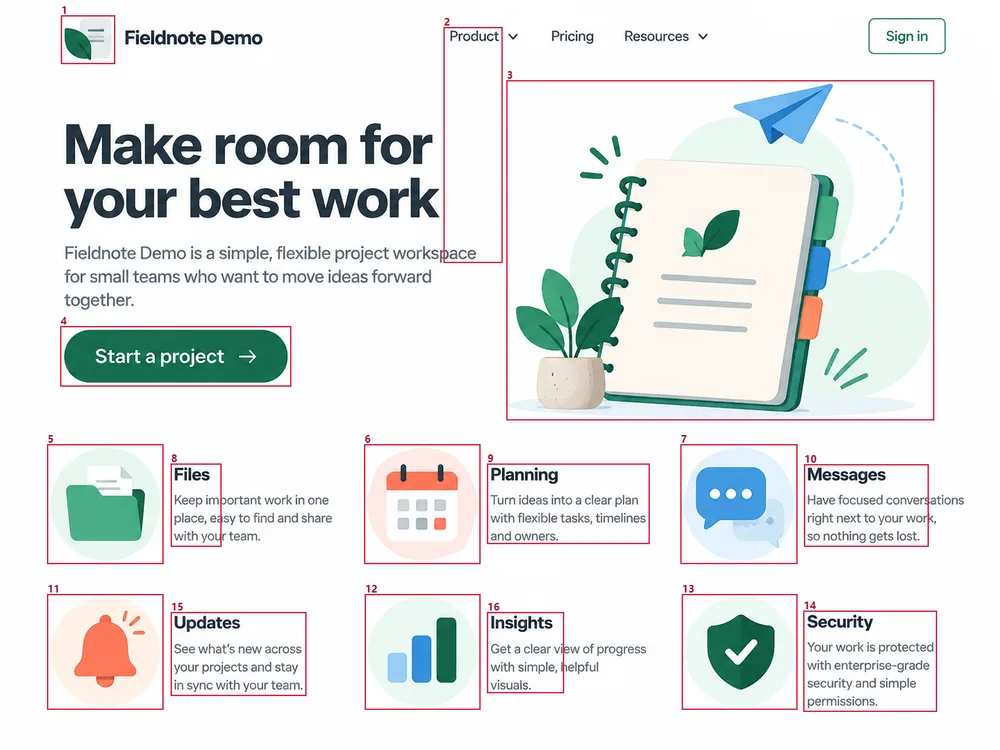
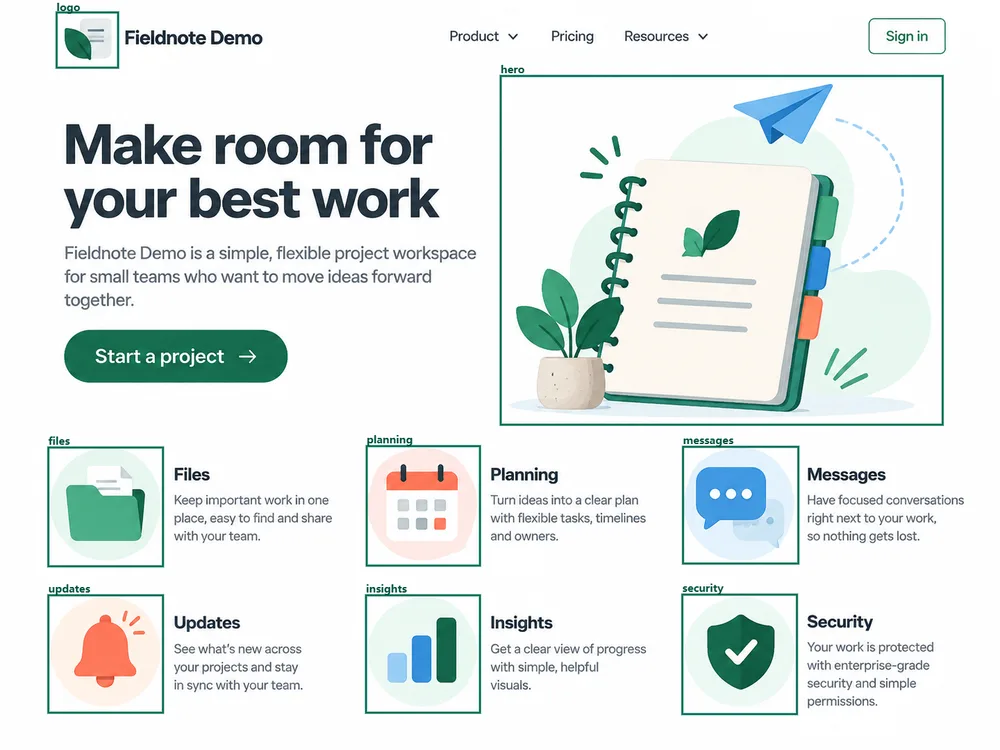
Include detached details such as calendar rings, a bell clapper or the paper plane, while excluding nearby labels. Name assets by role, such as logo, hero and files, for easier project organization.
4. Refine the background and edges with Repair
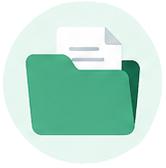
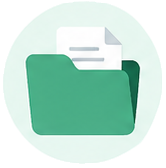
The folder uses Light cleanup with 0px edge shrink, interior cleanup off and smoothing off. Compare on a dark background, then adjust the strength for fine lines, shadows and intentional white fills.
This asset set retains its pale circular backgrounds. Decide whether those circles belong in your design before changing the cleanup settings.
5. Export PNG, WebP or SVG
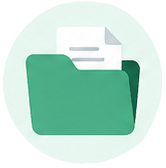

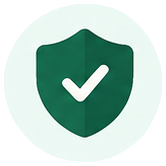
Use PNG for transparent assets and general design handoff, or WebP for website images. Export simple graphics as SVG; keep detailed illustrations as PNG or WebP to preserve gradients and textures. SVG export reconstructs paths rather than recovering an original design file.
Download the shield SVG · Download the shield WebP

For batch handoff, set file names, dimensions and padding, then package the selected assets as a ZIP.
6. Use the assets in a website or prototype
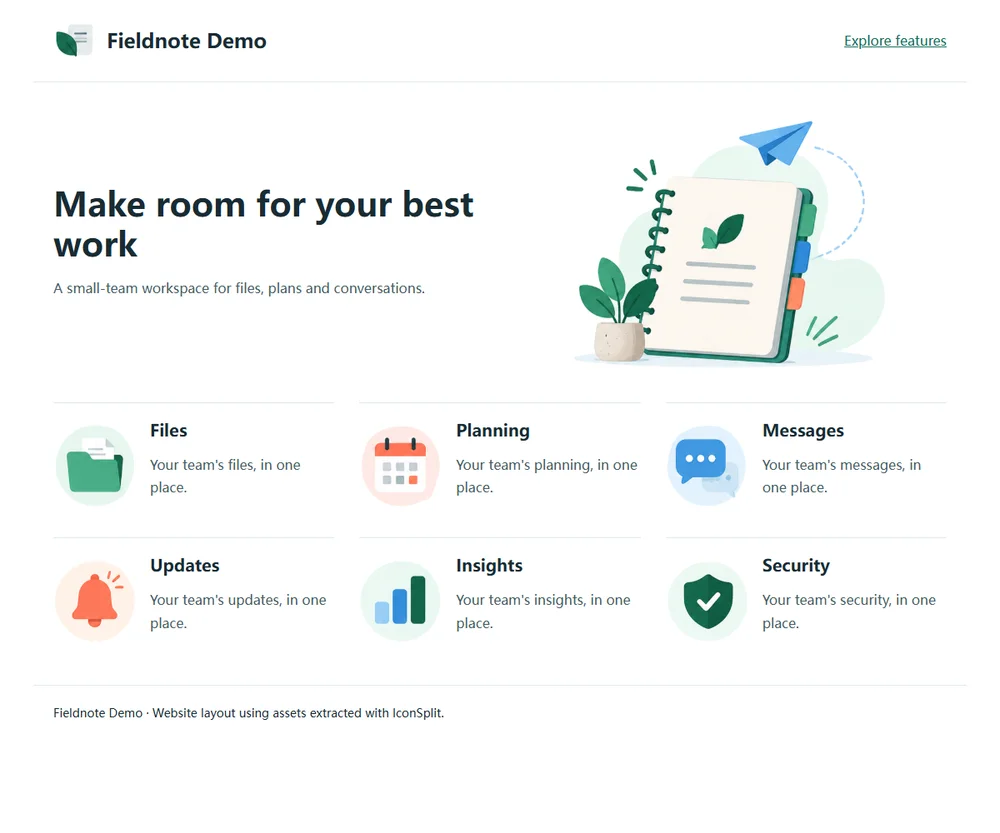
Set width and height for the displayed size and add meaningful alt text. Reserving layout space helps prevent shifts while images load.
Frequently asked questions
Will every extracted asset have a transparent background?
Transparency depends on the background, shadows and edges in the source image. Manual selection defines the target region, but does not guarantee removal of every background. Complex gradients and merged shadows may need further editing.
Can a website image be restored to code or design layers?
IconSplit extracts image assets; it does not restore HTML/CSS, font files, hidden layers or covered content. Exporting at a larger size does not add detail missing from the source.
Extract assets from your own design
Upload a website mockup, select the assets you need and export them for your project. Signed-in free accounts can process 3 images per day and export PNGs up to 512px on the longest edge. Individual and ZIP allowances are shown in your account.
Need WebP, SVG, larger original dimensions or multiple export sizes? Choose a plan for your project or ongoing workflow.